Wednesday, October 11, 2017

Earn Free Bitcoin here


The easiest way to earn Bitcoin and Altcoins is via Faucets.

Bitcoin faucets are a reward system, in the form of a website or app, that dispenses rewards in the form of a satoshi, which is a hundredth of a millionth BTC, for visitors to claim in exchange for completing a captcha or task as described by the website. There are also faucets that dispense alternative cryptocurrencies.

However, the most annoying part is you will need to accumulate a certain amount of BTC before you can make a withdrawal to your wallet. Here come in the microwallet to solve this problem. The faucets can send the BTC to your microwallet so that you can accumulate the BTC faster in microwallet from multiple faucets.

One of the most popular microwallet is Faucethub which can provide your withdrawal to reach your BTC wallet within 24hours. It has a list of Faucets for your choice. Below are the most easiest claim faucets which i have been using. Remember to register Faucethub before you can claim the faucet.

The below are the faucets that I filtered out which is the most profitable.


Starbits
Claimbits.win
Fautsy
Gobits
Claimbits.io
Fanbit
Kickasstraffic

Complete all these 7 faucets take you 5min and you can get around 300 satoshi. Then repeat again and again. You can simply earn upto 10000 satoshi like I did.


HOW TO USE FAUCETHUB / FAUCETHUB GUIDE:

Faucethub is a microwallet service which essentially helps users and website owners store funds and transfer funds to each other in a secured way without going through the process of blockchain which uses fees for each and every transfer. The owner is a great guy and very active and helpful. The support team and moderators deserve the same reputation also. If you have still not opened up an account in Faucethub, you are losing out on too much bitcoins.
Using Faucethub is easy, but new users or beginners stumble on the first step. In this very short guide I will tell you exactly how to do start with it and what you need to do.
REGISTRATION PROCESS:
You do it as you will with any websites. The only thing you need in addition is a bitcoin wallet address. If you still do not have it. See how to get one here.
Connecting your account:
In Faucethub, you need to connect your present bitcoin address. What happens is this:
There are several sites that pay to Faucethub account. What it means is Faucethub generates an address of itself corresponding to the bitcoin address that you add to your Faucethub account. So, when these sites pay, they pay to the corresponding address that you have with Faucethub. All these goes on in the background and you won’t see it. When a site asks you to put in your “Faucethub Account” It means that you put in the same address (bitcoin wallet address / litecoin wallet address / dogecoin wallet address) that you have linked with your Faucethub.
HERE IS AN EXAMPLE TO MAKE EVERYTHING EASIER:
Suppose your bitcoin wallet address is : XYZ123
In Faucethub you add this address.
Now, when a site tells you to put in your Facuethub address, you put in XYZ123.
When the site sends you bitcoins you will get bitcoins in your Faucethub address XYZ123.
You do not get your bitcoins in your bitcoin wallet address XYZ123. For that, you need to withdraw your funds from Facuethub account to your bitcoin wallet address.
For withdrawing your funds, you need to go to your Faucethub account and then withdraw to your bitcoin address XYZ123.
If you have many other bitcoin address such as: ABC123, DEF123, UVW123 and you put any of these address in the sites that ask for your Faucethub address, you won’t get the funds in your bitcoin address since these addresses are not linked to your Faucethub account.
You can link multiple addresses to your Faucethub account.
Linking an address to your Faucethub account:
Once you signup and login, you will see your dashboard by default. Click on the tab “Wallet Addresses” Then below you will see a space to put in your wallet address that you want to link to Faucethub.


Faucethub deals with Bitcoin(btc), Litecoin(ltc) and Dogecoin(doge) cryptocurrency systems. So, after putting your wallet address, you have to select the type of currency it is “btc/ltc/doge”.
Then just below click the “Link This Address” button.
Now you are done.

I’m not going to explain all what you can do in the site as those are pretty self-explanatory and will be a waste of your time. Search the tabs, and read the help and FAQs. Before using chat read the chat rules on the “?” button just above chat.
Faucethub allows you to earn from faucets, games, Chat, offers and surveys, click on ads etc, and your earnings are added to your Faucethub address. Being active on Faucethub chat also gives you a chance to get satoshis from the uncountable users with a big heart who decides to rain. The default rain is caused by Faucethub “rainmaster”. “Rain” is actually the act where users / Faucethub tips multiple other users and is a way of conveying appreciation or just saying “thank you”. Faucethub also has a website dedicated to getting sure rains for visiting faucets. Got to it (Rainpool) from here, or (read first on how to use rainpool on my rainpool guide by clicking here).  You can also open a faucet for yourself at Faucethub too and the process is very simple and well explained.
Hoping you best of luck with Faucethub!

Now you can start to claim BTC from the below faucets

The below are the faucets that I filtered out which is the most profitable.


Complete all these 7 faucets take you 5min and you can get around 300 satoshi. Then repeat again and again. You can simply earn upto 10000 satoshi like I did.


Donation


If you like this guide and would like to do a donation to me, you can donate to the below:

Bitcoin (BTC): 1CxXyr8XepnMWjBPFAERRg7sZNpmirFcZB

Ripple (XRP): rL12t8WFDHDF8QN4iUzC3jNU2WddYRCGk9

Monero (XMR): 44VxXWC2o713phf5otf35vJQ9UDJQgvf58WgAd7UPNsV5Aj33VyMhxu3gF1nzjnRx17aSENaoB9h8Bwr3u9cfJmdKnJM6bv

Sunday, October 8, 2017

Use Excel to Get Updated Bitcoin & Altcoin price


Use Excel to Monitor Bitcoin & Altcoin price
This guide will teach you step by step on how to use excel to get updated Bitcoin & Altcoin price in the easiest way even though you are not an Excel Expert.
You just need to simply follow the below 2 steps:

1. Download Power Query to your Excel
2. Setup Excel and link to https://coinmarketcap.com/

1. Download Power Query to your Excel
Power Query is an amazing data tool for Excel!  It is built by Microsoft to help you import, transform, and automate your data processes.  
Here is a quick list of compatible versions:
  • “Free” add-in for Excel 2010 and 2013 for Windows.
  • Built-in feature for Excel 2016 for Windows. 
Complete Guide to Installing Power Query
This page will help you determine if you have the right version of Excel, and provide installation instructions.

Video Guide to Installing Power Query

What Version Do I Need?

The download page for Power Query lists which version of Excel are compatible with Power Query.
The following Office versions for Windows are supported:
  • Microsoft Office 2016 – All Versions
  • Microsoft Office 2013 – All Versions
  • Microsoft Office 2010 Professional Plus with Software Assurance
Both 32-bit and 64-bit are supported.  Power Query is not compatible with any Mac versions of Excel yet.
Unfortunately, if you don’t have these versions you will need to upgrade to use Power Query.  To me, Power Query is worth the upgrade to Office 365 alone, and there are a lot of other cool new features too.

How Do I Check My Version of Excel?

Excel 2010

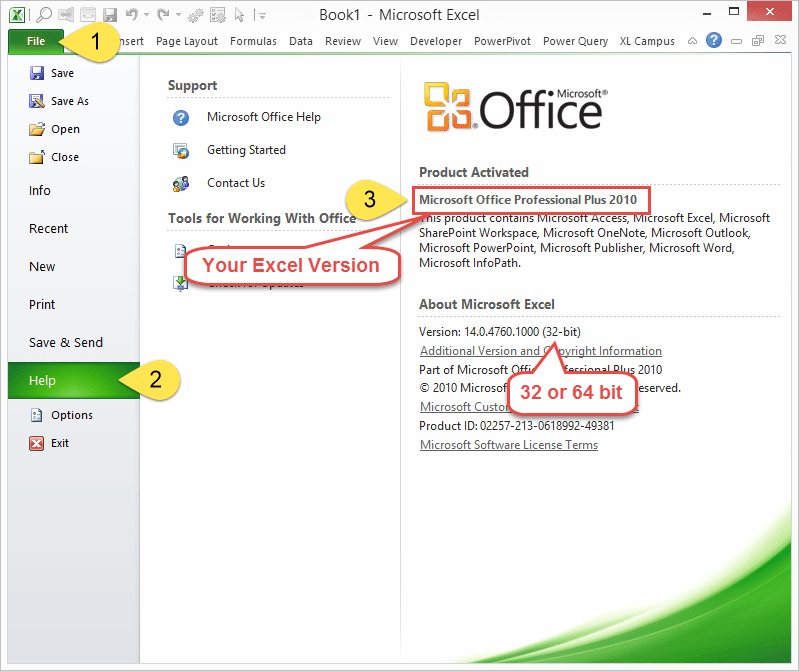
Here’s how to determine your version and 32 or 64 bit in Excel 2010:
  1. Click the File button.
  2. Click the Help option on the left side menu.
  3. The Excel version will be listed under the Product Activated section.
  4. The bit version (32-bit or 64-bit) will be listed under the About Microsoft Excel section.

Excel 2010 Version and 32 or 64 bit
If your Excel looks like the screenshot above, then you are in luck! 🙂  Again, you will need the Professional Plus version of Excel 2010.

Excel 2013

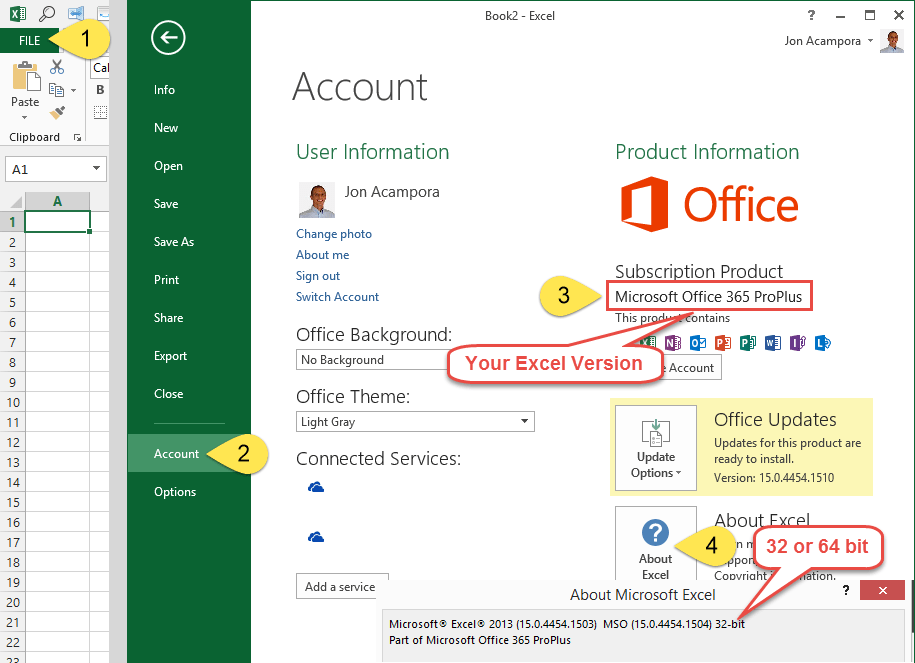
Here’s how to determine your version and 32 or 64 bit in Excel 2013:
  1. Click the File button.
  2. Click the Account option on the left side menu.
  3. The Excel version will be listed under the Subscription Product section.
  4. Click the About Excel button.  The bit version (32-bit or 64-bit) will be listed in the first row of the pop-up window.

Excel 2013 Version and 32 or 64 bit

How to Install Power Query

Excel 2016

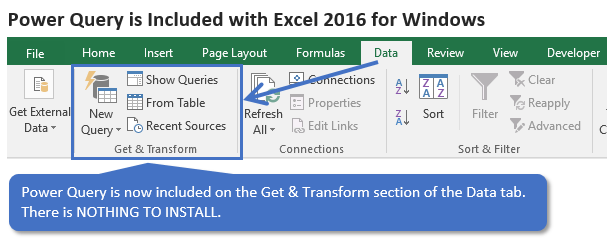
Power Query is included with Excel 2016.  It has been renamed and is now on the Data tab of the Ribbon in the Get & Transform section.
Power Query in Excel 2016 for Windows Data Tab of Ribbon Get and Transform
This means there is nothing to install.  If you are using Excel 2016, go to the Data tab on the ribbon and press the New Query button to create a query and open the Power Query editor.
It’s important to note that there are some differences in Power Query for different builds of Excel 2016.
If you are on the MSI (Windows Installer) version then you will not get frequent updates to Power Query.  Your ribbon might look different from mine, and you won’t have all the latest features.
If you are on an Office 365 subscription then you have the Click-to-run version and you should get all the latest updates.  
If you are on the ProPlus version of Office 365 then you might be on the Deferred Channel.  The name of the Deferred Channel has been changed to Semi-Annual Channel as of September 2017.  This means you get updates every six months instead of every month.
All the versions and channels make this very confusing, to say the least.  Hopefully this guide helps you figure out how to get Power Query for Excel 2016.
Excel 2010 & 2013
For Excel 2010 and 2013 you will need to download the Power Query add-in and install it.
The installation steps are about the same in Excel 2010 and 2013.
  1. Close (exit) Excel completely.
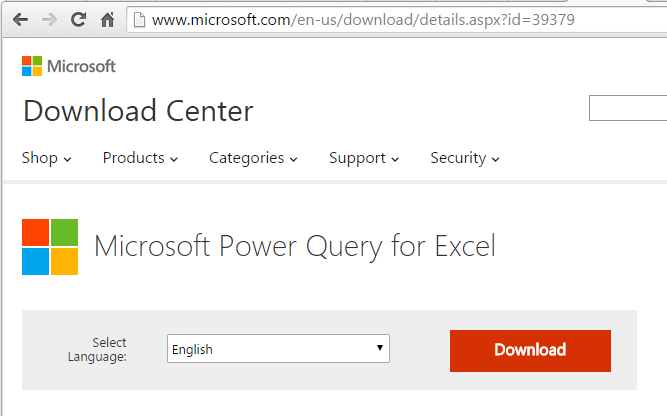
  2. Click the following link to go to the download page.
    http://www.microsoft.com/en-us/download/details.aspx?id=39379
    Power Query Download Page
  3. Click the Download button.
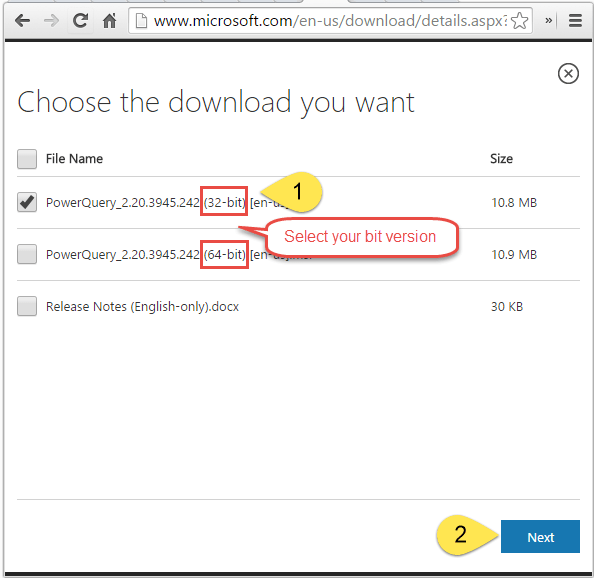
  4. Click the checkbox for the bit version you are using.  Most likely you will be using 32-bit.
    Download Power Query Select Bit Version
  5. Click Next
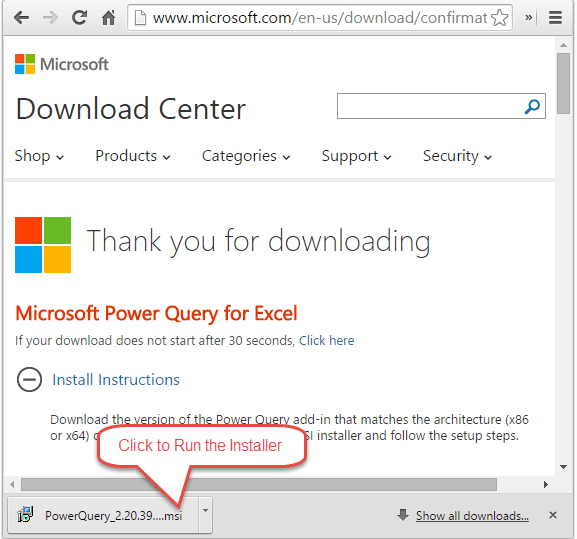
  6. The add-in installation file will download.  Click the file to run the installation.
    Power Query Run Installer
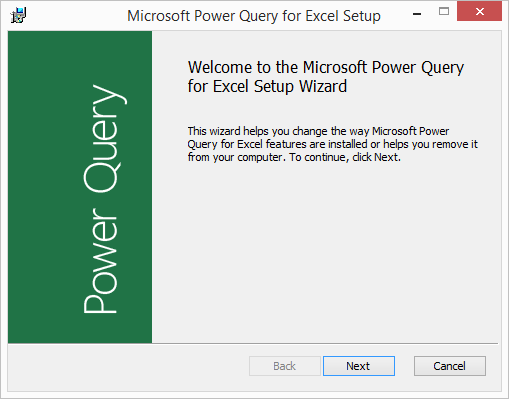
  7. The Setup Wizard window will open.  Follow the steps to install Power Query.
    Power Query Installation Window - Setup Wizard
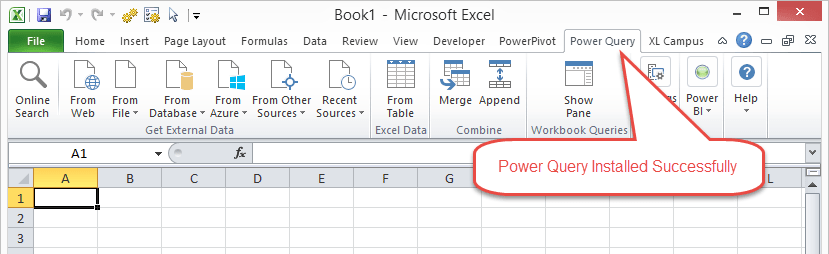
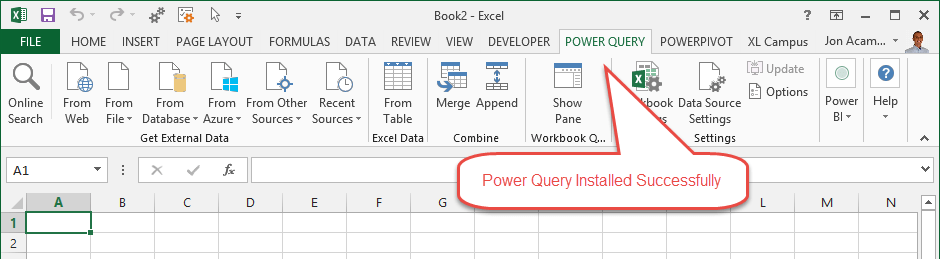
  8. Once the installation is complete, open Excel.  You should now see the Power Query tab in the Ribbon.
    Power Query Tab of the Ribbon Excel 2010Power Query Tab of the Ribbon Excel 2013

My Power Query Tab Disappeared

If your Power Query tab ever goes missing, you can usually re-enable the add-in by going to the COM Add-ins menu.
There are a few ways to get to the COM Add-ins menu.
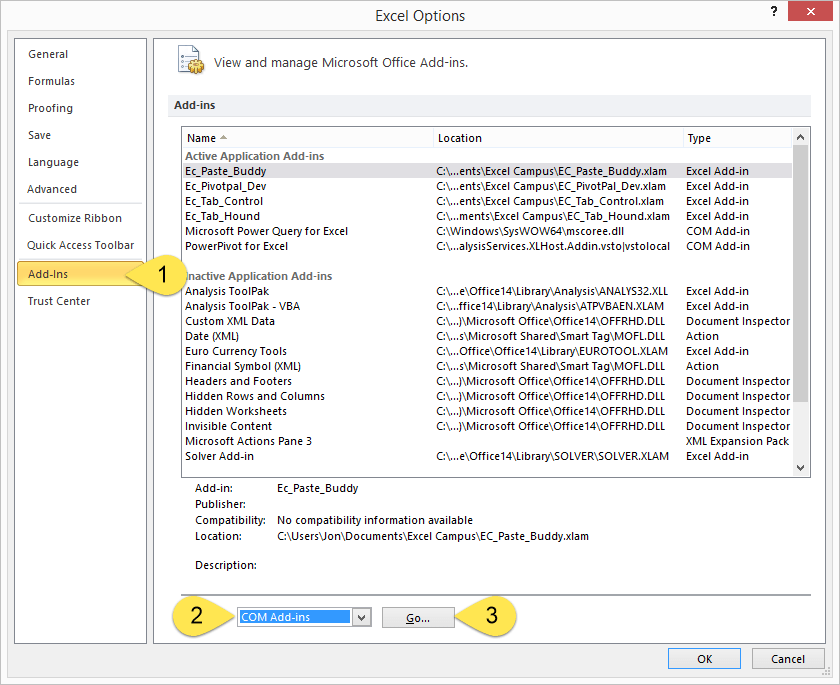
  1. File menu.
  2. Click Options on left side menu.
  3. Click Add-ins on left side menu.
  4. Select COM Add-ins from the Manage drop-down.
  5. Click the Go… button
    Excel 2010 Options Menu for COM Add-ins
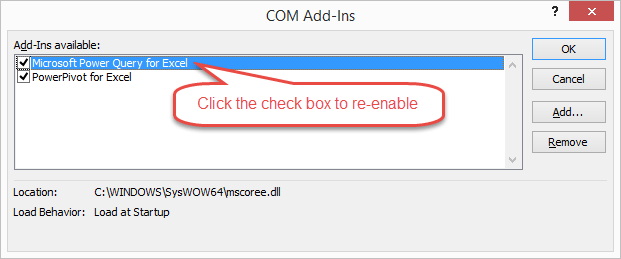
  6. That will open the COM Add-ins Window.  If the Power Query check box is not selected, just select it to reload the add-in.
    COM Add-ins Menu for Power Query

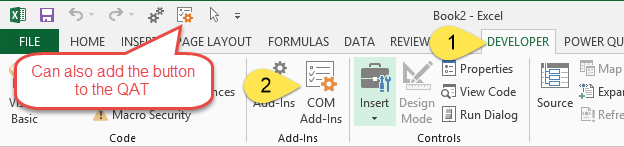
There is also a button on the Developer tab that will take you directly to this window.
COM Add-ins Button on the Developer Tab of the Excel Ribbon

2. Setup Excel and link to https://coinmarketcap.com/
  • Now, Open an empty Excel worksheet. Click on Power Query tab and then choose From Web.


  • The below will prompt out and then you need to choose Basic and paste https://coinmarketcap.com/ into URL. Finally Press OK.


  • Wait for a few seconds. The below will promp out. Click on Table 0.

  • Then, all the Cryptocurrencies prices will be listed as below. Click on Edit button.
  • The Query Editor will be Prompt Out
     You can see all the listed crytocurrencies in this view
  • Then you can either delete unwanted Column or just leave as is. To delete unwanted column, just right click on the column and choose remove. To get a clean view, i deleted most of it and left Rank, Price and 24h price change.

  • Then, you can filter which currency that you want to monitor. This will further simplify the template. Do it as below.

  • So, now you can see a simple template showing the information that you wanted. Click on Close & Load. this will load the information into your Excel.
  • You will see the Crypto price will be in your excel worksheet.

  • If you want to update the latest price, simply right click on the table and choose Refresh. The info will be updated according to the latest information on Coinmarketcap.

  • You are done with the Setup now. You can get latest Crypto price on you Excel with 1 or 2 clicks.
Now, With this Crypto info on you Excel Sheet, you can do some VBA or Excel Formula with it. I have done a simple one, to see my gain and loss on the holding Crypto. You can download the Excel from Google Drive. Click Here.

If you are not able to download, please leave comment with your email address, I will send to you.

Hope you enjoy ready. Happy Earning!!!!!☺☺☺


Donation

If you like this guide and would like to do a donation to me, you can donate to the below:

Bitcoin (BTC): 1CxXyr8XepnMWjBPFAERRg7sZNpmirFcZB

Ripple (XRP): rL12t8WFDHDF8QN4iUzC3jNU2WddYRCGk9

Monero (XMR): 44VxXWC2o713phf5otf35vJQ9UDJQgvf58WgAd7UPNsV5Aj33VyMhxu3gF1nzjnRx17aSENaoB9h8Bwr3u9cfJmdKnJM6bv

How to Set Up a Bitcoin Wallet

How To Set Up a Bitcoin Wallet


This guide will show you how to create and set up your first Bitcoin wallet (an “account”). But first:

What is a Bitcoin Wallet?

A “wallet” is basically the Bitcoin equivalent of a bank account. It allows you to receive bitcoins, store them, and then send them to others. There are two main types of wallets. A software wallet is one that you install on your own computer or mobile device. You are in complete control over the security of your coins, but they can sometimes be tricky to install and maintain. A web wallet or hosted wallet is one that is hosted by a third party. They are often much easier to use, but you have to trust the provider to maintain high levels of security to protect your coins. There are four main wallets that we recommend for beginners.

Coinbase

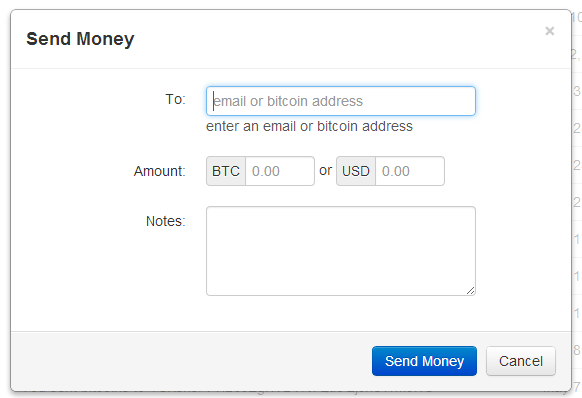
Sending coins with Coinbase


Sending coins with Coinbase

Coinbase is a web wallet with a simple design and a number of very useful features that make it excellent for beginners. You can send and receive bitcoins via email and buy and sell bitcoins directly from Coinbase. A full-featured Android app enables access to all account functions on the go. Coinbase’s founders have a proven startup track record and have raised money from very prominent venture capitalists. This gives Coinbase a level of legitimacy unparalleled in the Bitcoin space. They are also one of the only large Bitcoin companies to never suffer a major hack. Click here to sign up.

Electrum

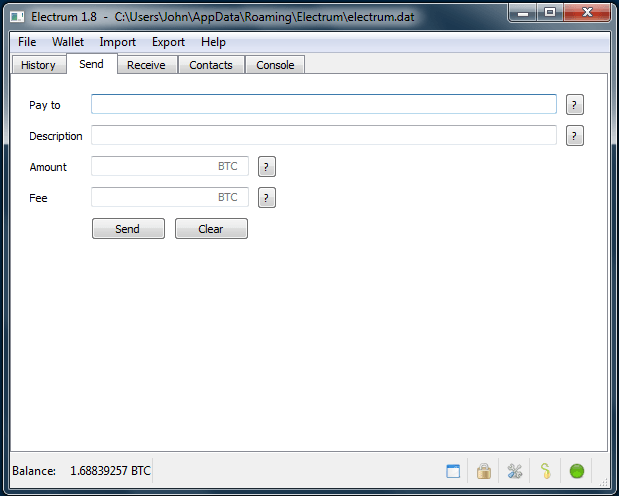
sending coins with Electrum for Windows


Sending coins with Electrum for Windows

Electrum is a software wallet that enables you to set up a strong level of security very quickly. During the simple installation process, you are given a twelve word phrase that will allow you to recover all of your bitcoins in the event that your computer fails. Your wallet is also encrypted by default which helps protect your coins against hackers. Electrum is available for Windows, OSX, and Linux and is our recommended software wallet for beginners. Click here to download the right version for your operating system.

Bitcoin Wallet for Android and Blackberry

For those looking for mobility and security, we recommend the simply-titled Bitcoin Wallet mobile app. There is a version for both Android and BlackBerry OS. It is a software wallet, so you retain complete control over your bitcoins. It also works well with QR codes and NFC, making transferring coins to someone else’s phone easier than writing a check. Be sure to backup your wallet (with the included “Backup Wallet” feature) or you risk losing all your coins the next time you get too close to a pool.

Blockchain.info


One of the quickest and easiest ways to get a Bitcoin wallet is to simply go to Blockchain.info and fill out their brief requirements. Blockchain.info is another web wallet like Coinbase and provides a simple setup and mobile access to your account via their Android app. They also provide a number of other useful services to the Bitcoin community.

Other Wallets

We also recommend a few other wallets, but not for the beginning Bitcoin user. If you are up for more of a challenge, Armory is a good choice for those requiring the highest possible security, and the original Bitcoin-Qt client is also trusted and worth learning how to use.

Donation

If you like this guide and would like to do a donation to me, you can donate to the below:

Bitcoin (BTC): 1CxXyr8XepnMWjBPFAERRg7sZNpmirFcZB

Ripple (XRP): rL12t8WFDHDF8QN4iUzC3jNU2WddYRCGk9

Monero (XMR): 44VxXWC2o713phf5otf35vJQ9UDJQgvf58WgAd7UPNsV5Aj33VyMhxu3gF1nzjnRx17aSENaoB9h8Bwr3u9cfJmdKnJM6bv


Monday, October 2, 2017

Example of Monero Mining with Blog

You can mine Monero (XMR) with blog. 


The below UI allow blog's visitor to watch their contribution of CPU in mining XMR.

This UI also allow your blog visitor to choose on the mining speed or just stop the mining.
*I removed the UI because of I do not want to use the mine with your CPU.


 Visit http://bitcoinspedia.blogspot.com/2017/09/how-to-mine-monero-xmr-with-blog.html to get step by step guide.